
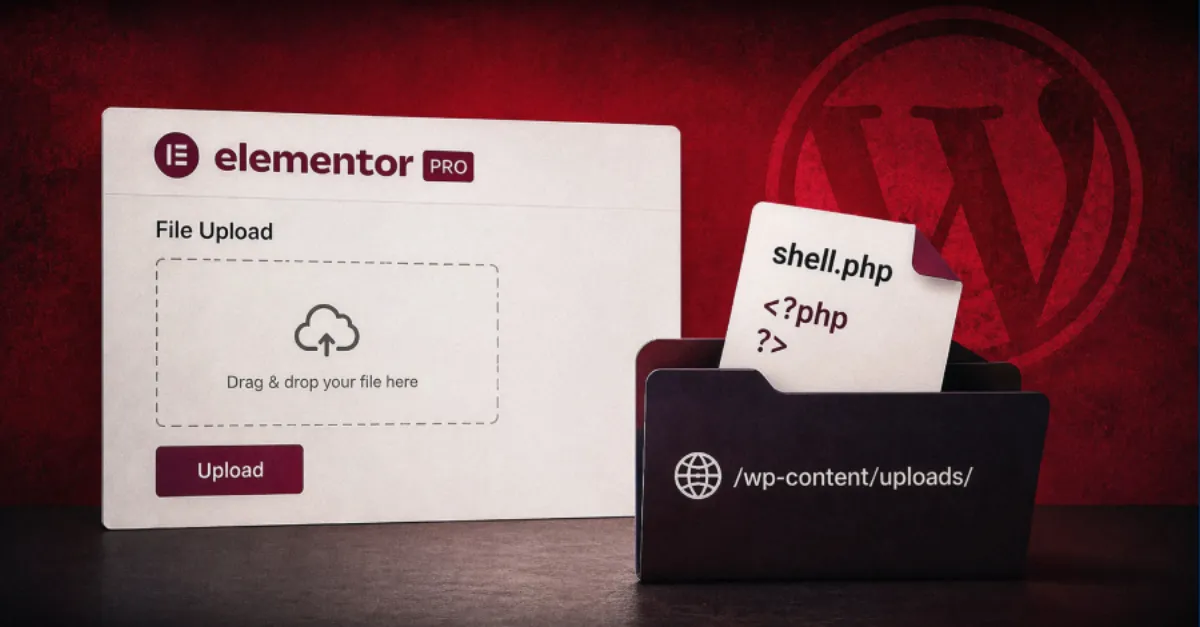
Elementor Pro Security Flaw: Attackers Could Upload PHP Files Without a Login
A reported vulnerability in the popular Elementor Pro WordPress plugin could let an attacker who is not logged in upload malicious PHP code and execute it on a website server.
Security researchers have reported a worrying flaw in Elementor Pro, one of the most widely used page builder plugins for WordPress websites. According to the report, the vulnerability could allow an unauthenticated attacker, meaning someone with no login account on the target website, to upload a PHP file and then execute code on the server. That combination is dangerous because it can give an outsider full control over the site.
Elementor Pro is an add-on to the free Elementor plugin. Website owners use it to design pages, create forms, and add interactive features without writing code. Because it is so popular, a flaw in Elementor Pro can affect a large number of websites. WordPress plugins run on a web server, and PHP is the programming language that WordPress itself uses. When an attacker can upload a PHP file, they are not just adding an image or document; they are placing a script that the server may run.
The phrase 'unauthenticated' is important. It means the attack does not require a password, stolen account, or tricked administrator. A malicious visitor can send a specially crafted request directly to the website and trigger the upload. Once the PHP file is uploaded, the attacker can use it as a web shell, a small hidden program that lets them send commands to the server from a browser. This type of attack is often called remote code execution because the attacker can run code on a machine they do not own and are not physically near.
What can happen if this flaw is exploited? The attacker could modify any file on the site, including the WordPress theme and core files. They could inject hidden links or malicious scripts that infect site visitors. They could steal customer data, such as email addresses and payment details, if the site runs an online store. They could install a backdoor, a hidden access point that survives plugin updates, to maintain access even after the original flaw is fixed. In the worst case, the server could be used to send spam, host phishing pages, or attack other websites.
For WordPress site owners, the immediate priority is to check whether a patch or update for Elementor Pro is available and install it as soon as possible. If the plugin is not essential, deactivating and deleting it removes the risk entirely. Enabling automatic updates for plugins can help close future gaps quickly. A web application firewall, which is a security filter that inspects incoming traffic before it reaches the website, can block many upload attempts even before a patch is installed. Regular backups allow you to restore a clean version if something malicious gets through. A managed WordPress hosting provider such as AEU Hosting, which is designed to keep WordPress installations secured end to end, can add another layer of protection with its hardened environment and monitoring.
This report is a reminder that even trusted, widely used plugins can contain serious security mistakes. Keeping software updated, reducing unnecessary plugins, and using a layered defence approach are the best ways to reduce risk. Website owners should review their WordPress installations today and make sure no unknown PHP files have appeared in their upload directories.
How to Protect Yourself
- Update the Elementor Pro plugin on your WordPress site as soon as a new version is available; check your WordPress dashboard for the update notice.
- If you do not actively use Elementor Pro, click Deactivate and then Delete in the Plugins section to remove it and close the risk.
- Turn on automatic updates for your WordPress plugins so security fixes install without you having to remember.
- Use a web application firewall (a security filter that checks traffic to your website) to block suspicious uploads.
- Make a full backup of your website files and database now, and keep regular backups, so you can restore a clean copy if needed.
- Look in your website's upload folders for any PHP files you did not create, and ask your web host for help if you see anything unusual.